Bundle
Bundle 2.0 – Client Dashboard Update
Updated by Noviana Fitrah
What Changed
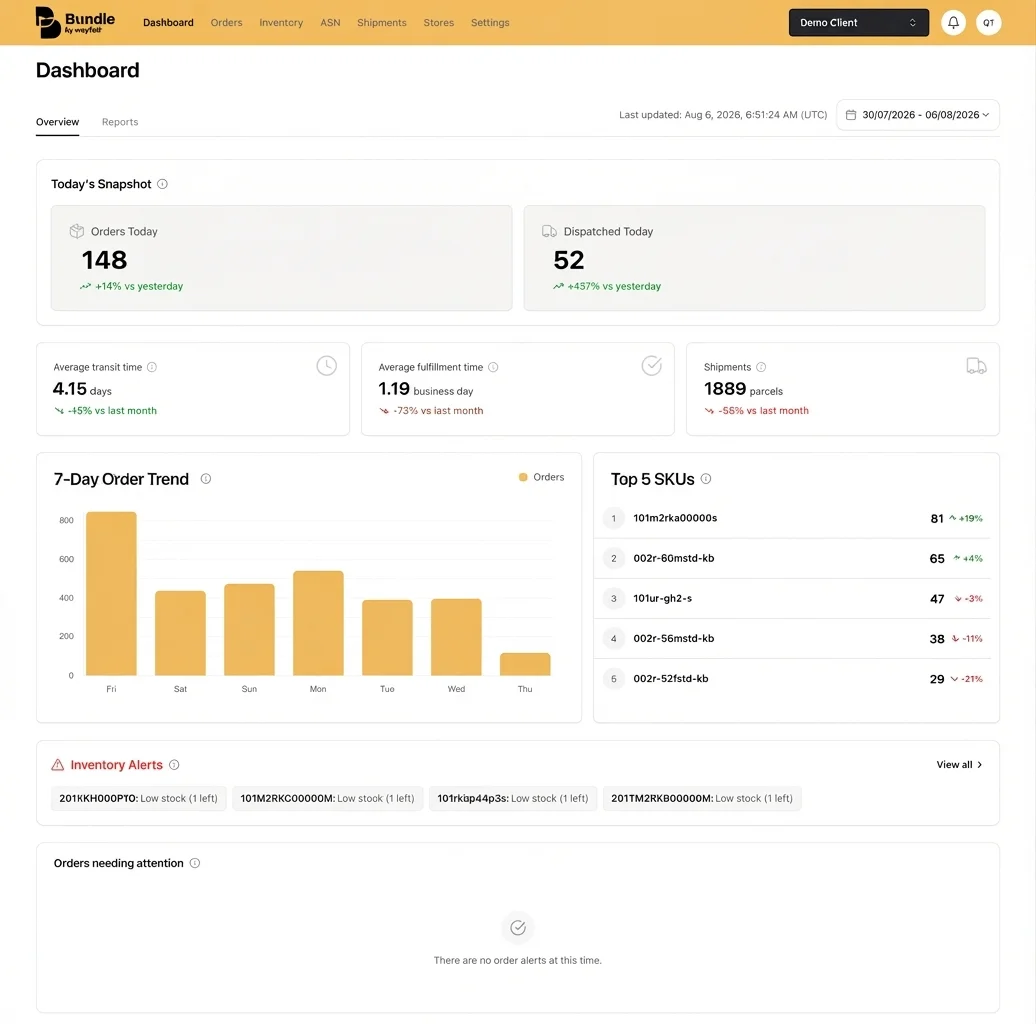
The Bundle 2.0 Client Dashboard is now the first screen you see when you log in. It brings today’s orders, dispatches, top-selling SKUs, low stock and stalled orders into one view, so you know how the day is going and what needs fixing without digging through reports.
What you see on the Client Dashboard when you log in
Today’s orders and dispatches, against yesterday
Orders Today and Dispatched Today sit at the top, each set against yesterday. A slow morning and a real problem stop looking the same.
Fulfillment performance for the window you choose
- Average transit time: warehouse to customer.
- Average fulfillment time: processing to packed and ready.
- Total shipments.
Pick any window up to 31 days, as far back as 6 months.
What’s selling, and what’s cooling off
A 7-day order trend sits next to your top 5 SKUs for the week. Each SKU shows its change against last week, so a slowing best seller is hard to miss.
Low stock and stalled orders that need you now
Products at or below your low stock threshold appear with the units left. Orders that have sat longer than your stalled threshold appear too, each with a Push Order button that sends it straight to the warehouse.
A Last updated stamp at the top tells you how fresh the numbers are.
Low stock and stalled order alerts that match how you run
Alerts start at 50 units for low stock and 24 hours for a stalled order. Client admins can set their own in Settings, as low as 1 unit or 1 hour. Everyone on your account sees the full dashboard. Changing thresholds and pushing orders are client admin jobs.
Why it matters: the cost of finding out late
A stock-out you spot on Tuesday is a reorder. The same stock-out spotted after the weekend is several days of sales you didn’t make. Stalled orders work the same way. Now they find you before your customer starts asking where their parcel is.
Getting started with the Client Dashboard
- Log in to Bundle 2.0. The Client Dashboard is now your homepage.
- Client admins: check the alert thresholds in Settings and set your own.
- Turn on Order has not been fulfilled under Settings > Notifications > Platform Notifications. Stalled orders only show on the dashboard once someone on your account has switched it on.
Why It Matters
Client Dashboard
When clients log in to Bundle 2.0, the first thing they see is how today is going: orders and dispatches compared with yesterday, their best-selling SKUs, and the low stock and stalled orders that need attention.
Why it matters: problems show up the day they happen, while there’s still time to fix them. A product running low or an order stuck in the warehouse no longer waits to be found by clicking through different parts of Bundle. Clients spend less time checking and more time acting.
Have any questions about this update?
Send a message to our product team – product@wayfindr.io